
Permissions
Welcome to Hexia
Permissions in Hexia control what each user can see and do. Access is built from a hierarchy of entities and a set of roles, and it is additive: you can stack permissions to grant more access, but you cannot subtract access from an inherited permission. To use the platform, a user needs two things at once: access to a service and access to a point of service (or a group of them).
The Hexia hierarchy
Access in Hexia is built on a hierarchy of entities, from the highest level down to individual services.
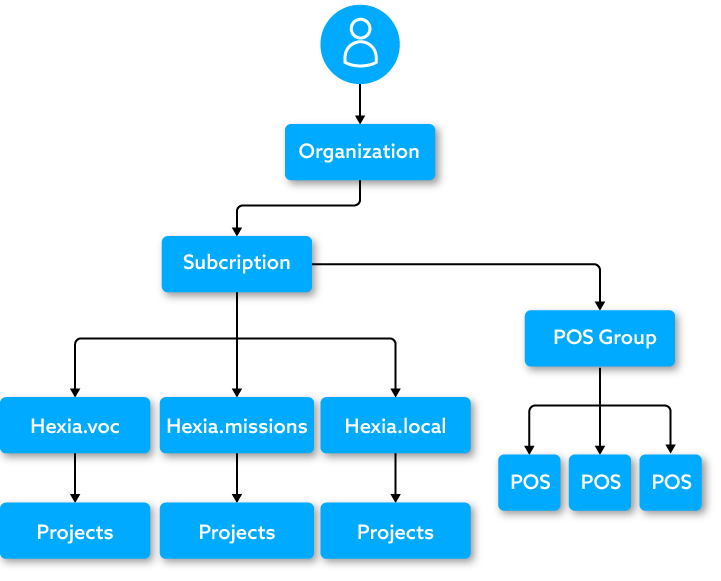
Organization: the highest entity; it usually contains one or more subscriptions and never contains a point of service directly. Example: Riverside Group Inc. is the holding company that owns several brands.
Subscription: a brand, division, or company owned by the organization; it almost always contains at least one point of service. Example: Riverside Coffee, Riverside Grill, and Riverside Market are individual companies (each with their own employees) all owned by Riverside Group Inc.
Point of service (POS): usually a brick-and-mortar store, but it can also be a business segment such as a pickup point, or a non-physical location for online businesses. Example: Montreal is only one of many points of service Riverside Coffee has across the country.
Users: belong to the organization or subscription level. An organization-level user can access any or all owned subscriptions; a subscription-level user can only access that subscription’s resources. Example: Riverside Group Inc.’s employees could monitor any or all subscriptions, while an Riverside Coffee employee would only see Riverside Coffee’s resources and none of Riverside Grill’; otherwise that would be a security risk.
Owner / admin note: a user added at the subscription level also shows up at the organizational level, and a user created at the organizational level can assign permissions at the subscription level (for example, accessing Riverside Group at the organizational level versus Riverside Coffee and Riverside Grill at the subscription level).
Services: a product within Hexia, such as Voice of Customer (Hexia.voc), Mystery Shopper (Hexia.missions), or Hexia.local. You set permissions for each service individually, and a subscription can hold several service items, including more than one of the same type. Example: Riverside Grill needs two Voice of Customer services (one post-purchase, one post-delivery) plus a Hexia.local service to monitor online mentions, so the admin created two VoC service items and one Hexia.local service item.
Two ways to grant permissions
There are two ways to give a user permissions. Individual permissions let you give fine-grained access to any specific person. Group permissions save time in larger organizations: instead of configuring every employee individually, create groups (each with their own permissions) and then assign users to one or more groups. Example: all project managers share one set of permissions, different from the marketing department’s.
Permission role levels
Different roles can access different functions depending on the service. A Reader typically has read-only access, a Contributor can edit data, and an Administrator (or Owner) can do all of that and manage configuration and alerts. The tables below summarize access by role for each service.
Administrator portal
| Permission / Role | Owner | Administrator | Contributor | Reader |
|---|---|---|---|---|
| Access the administration portal | ✓ | ✓ | ||
| Create, edit, or delete a subscription | ✓ | ✓ | ||
| Create, edit, or delete a service | ✓ | ✓ | ||
| Manage users and permissions | ✓ | ✓ | ||
| Manage groups and permissions | ✓ | ✓ | ||
| View a point of service | ✓ | ✓ | ✓ | ✓ |
| Create or edit a point of service | ✓ | ✓ | Edit | |
| Manage a POS group | ✓ | ✓ |
Voice of Customer (Hexia.voc): filtered by POS / POS group permissions
| Permission / Role | Owner | Administrator | Contributor | Reader |
|---|---|---|---|---|
| Access the dashboard | ✓ | ✓ | ✓ | ✓ |
| Access alerts | ✓ | ✓ | ✓ | ✓ |
| Edit, forward, or change alert status | ✓ | ✓ | ✓ | |
| Access results | ✓ | ✓ | ✓ | ✓ |
| Access competitor results | ✓ | ✓ | ✓ | ✓ |
| Access trends | ✓ | ✓ | ✓ | ✓ |
| Access reports | ✓ | ✓ | ✓ | ✓ |
| Access confidential information | CI permission required | CI permission required | CI permission required | CI permission required |
Mystery Shopper (Hexia.missions)
| Permission / Role | Owner | Administrator | Contributor | Reader |
|---|---|---|---|---|
| Access the dashboard | ✓ | ✓ | ✓ | ✓ |
| Access results | ✓ | ✓ | ✓ | ✓ |
| Access reports | ✓ | ✓ | ✓ | ✓ |
| Access confidential information | CI permission required | CI permission required | CI permission required | CI permission required |
Hexia.local
| Permission / Role | Owner | Administrator | Manager | Contributor | Reader |
|---|---|---|---|---|---|
| Access the dashboard | ✓ | ✓ | ✓ | ✓ | ✓ |
| View points of service | ✓ | ✓ | ✓ | ✓ | ✓ |
| Assign participating POS | ✓ | ✓ | |||
| Create or enable a location | ✓ | ✓ | |||
| Update a location | ✓ | ✓ | ✓ | ||
| View directories and reviews | ✓ | ✓ | ✓ | ✓ | ✓ |
| Reply to reviews | ✓ | ✓ | ✓ | ✓ | |
| View reports | ✓ | ✓ | ✓ | ✓ | ✓ |
| View all profiles or create a user | ✓ | ✓ | |||
| Manage notifications | ✓ | ✓ | ✓ | ✓ | By type |
| Create, edit, or delete a Google Post | ✓ | ✓ | ✓ | ||
| Read a Google Post | ✓ | ✓ | ✓ | ✓ | ✓ |
| Manage templates and tags | ✓ | ✓ | ✓ | ||
| Updating the store locator | ✓ | ✓ |
Point of service and service permissions
To have a working account, a user needs two permission levels at once: one for the service you want them to access, and one for a point of service or a group of points of service. Together, these determine what the user can see. Example: a user could have access to the Voice of Customer service but still see no data because no point of service is assigned; assigning them the Montreal point of service gives them access to the Montreal Voice of Customer data.
Point of service groups
As with users, you can create POS groups, organized however you like: by region, or even under the name of a regional manager. A point of service can belong to multiple groups, which also makes groups a handy way to filter dashboard data. Example: creating a “Mary Jane Department” group with both the Montreal and Toronto POS lets Mary Jane Watson see both; she wouldn’t see the “Gwen Stacy Department” group unless an administrator grants it.
Note on overlapping groups: if you give a user multiple group permissions, some may overlap and it can get harder to tell what they can and cannot access. For example, if the Montreal POS for Mystery Shopper is in both the Mary Jane and Gwen groups, removing it from the Mary Jane group won’t stop a user with the Gwen group from seeing it. Use the impersonation feature to confirm what a user can actually see.
User impersonation
The User impersonation feature lets administrators see the platform exactly as a specific user sees it. Click the mask icon next to a user name in the user table; an orange bar appears while you view Hexia as that user, so there’s no confusion with your own account, and the arrow icon at its top-right returns you to your admin account. Example: if Alex Carter only has Riverside Coffee permissions, an admin can impersonate him to confirm he sees Riverside Coffee functionality only, a good way to make sure each user’s access is set correctly.
Addition and inheritance
Hexia uses an additive permission system: you can stack permissions together, but they can never be subtracted. Example: if everyone in a group has Contributor access to a resource, every other linked permission in the hierarchy must be at Contributor level or higher. You can raise someone to Administrator, but you cannot lower a group member to Reader; for finer control, use individual permissions instead of groups.
Additional permissions
Some additional permissions can be stacked on top of the roles above; these are usually service-specific. Example: you might need one of your Customer Support Specialists to manage contests and access users’ confidential information. Add that user to the Customer Support Specialist group, then add the individual “Confidential information” permission to that one person; everyone else in the group stays without access.
Was this article useful?
Thanks for your feedback!